
Expired domains bring a lot of SEO-related benefits. They come with existing backlinks, domain history, and sometimes even good existing traffic. That's why so many people buy them.
But here's one problem: A domain with a penalty stays penalized even after it expires and changes ownership. So if the previous owner was sending spam or running shady link schemes, that baggage follows the domain to you.
A blacklisted or banned domain is almost worthless for SEO because search engines have already decided to hide it from users. You could spend money on a domain, build a site on it, and still get zero search visibility because of something you had nothing to do with.
This guide will show you how to check if an expired domain is blacklisted, step by step, before you put any money down. Let’s get started:
What Does "Blacklisted" Actually Mean?
Before you start checking if your expired domain is blacklisted, it helps to know what you're actually looking for. "Blacklisted" is a broad term. A domain can be flagged in different ways, and each one affects your site differently.
Here are the four main types of penalties that usually get your domain blacklisted:
Google Manual Penalty
This happens when a Google reviewer applies a penalty for policy violations like spam, hacked content, or unnatural links. The main thing to know is that these penalties stay attached to a domain even after it expires and changes ownership. So you could buy the expired domain in good faith and still inherit the penalty.
Algorithmic Penalty
This is when Google's automated systems reduce a site's visibility without any manual action notice. There's no warning, no message in Search Console. The domain just quietly struggles to rank. Common triggers of algorithmic penalties are thin content, spammy backlinks, and keyword stuffing.
Google Safe Browsing Flag
Google flags sites for security issues to protect users from harm, and these penalties tend to be more serious. When a site is marked as dangerous for hosting malware or phishing content, Google shows warnings directly in Chrome and in search results. Even if the domain has expired since then, that flag can still be active.
Email Spam Blacklist
This one is separate from search rankings. Domains used in fraud, phishing, or spam emails get added to email blacklists. If the previous owner shared spam from that domain, your emails sent from it could land straight in the spam folder from day one.
Here's a quick comparison so you can see how the penalties differ from each other:
| Penalty Type | What Caused It | Does It Follow the Domain? | How Hard to Fix? |
| Google Manual Penalty | Spam, unnatural links, hacked content flagged by a Google reviewer | Yes | Hard. Needs a reconsideration request |
| Algorithmic Penalty | Low quality content, spammy backlinks detected by Google's systems | Yes | Moderate. Needs content and link cleanup |
| Safe Browsing Flag | Malware or phishing hosted on the domain | Yes | Moderate. Needs a security review |
| Email Spam Blacklist | Domain used to send spam or phishing emails | Yes | Varies by blacklist |
So as you can see, a domain can look perfectly fine on the surface but still carry one or more of these issues underneath. That's exactly why you need to check before you spend a single dollar on it.
How To Check If an Expired Domain Is Blacklisted: Step-By-Step
Step 1: Run a Quick Google Search
This is the first and fastest check you can do. It costs nothing and takes about 30 seconds.
Go to Google and type this into the search bar:
site:example.com
Replace "example.com" with the domain you want to check. For example, for DomCop, I would type “site:domcop.com” and then hit Enter.
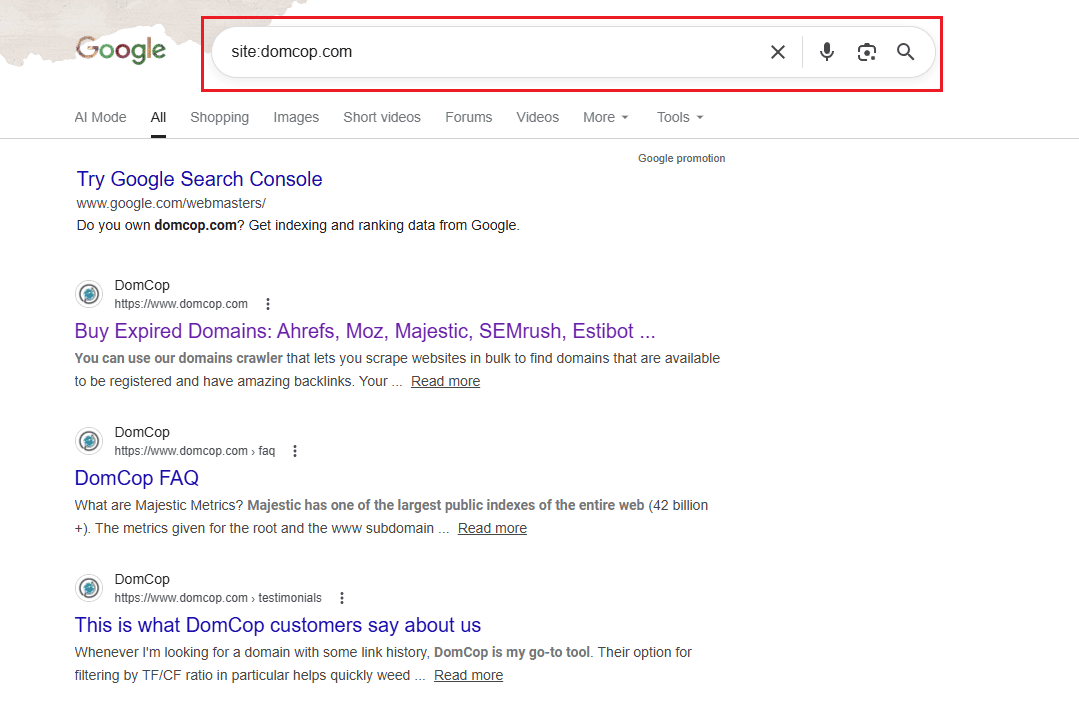
What you're looking for is simple. If no results are returned and the domain previously had pages indexed by Google, there is a good chance the website has been removed from Google's index.
So here's how to read the results:
You see pages listed: Good sign. Google knows the domain and has it in its index. It doesn't confirm the domain is completely clean, but at least it isn't fully deindexed.
You see zero results: This is a red flag. A ban means the website has been indexed out of search results and won't show up on Google anymore. If you run the site: command and see zero results, the domain may have been removed or banned.
One important thing to keep in mind here is that if a domain has been offline for a long time, zero results don't always mean it was penalized. Google may have simply dropped it from the index due to inactivity. That's why this step alone isn't enough. It's just your starting point.
Step 2: Check Google Safe Browsing
Once you've done the basic Google search, the next thing to check is whether the domain is marked for malware or phishing. This is a separate check from Google's search index, and it's equally important.
So, what is Google Safe Browsing? It is a service that warns users when they try to visit a dangerous website or download dangerous files. Google maintains lists of URLs that contain malware or phishing content, and this protection works across Google products.
In simple terms, if a domain was used to spread malware or trick people into giving up their passwords, it ends up on this list. And just like a manual penalty, that flag doesn't automatically disappear when the domain expires.
Here's how to check it:
Go to transparencyreport.google.com/safe-browsing/search and type in the domain name. That's it. Here’s a screenshot of DomCop’s safe browsing site status:
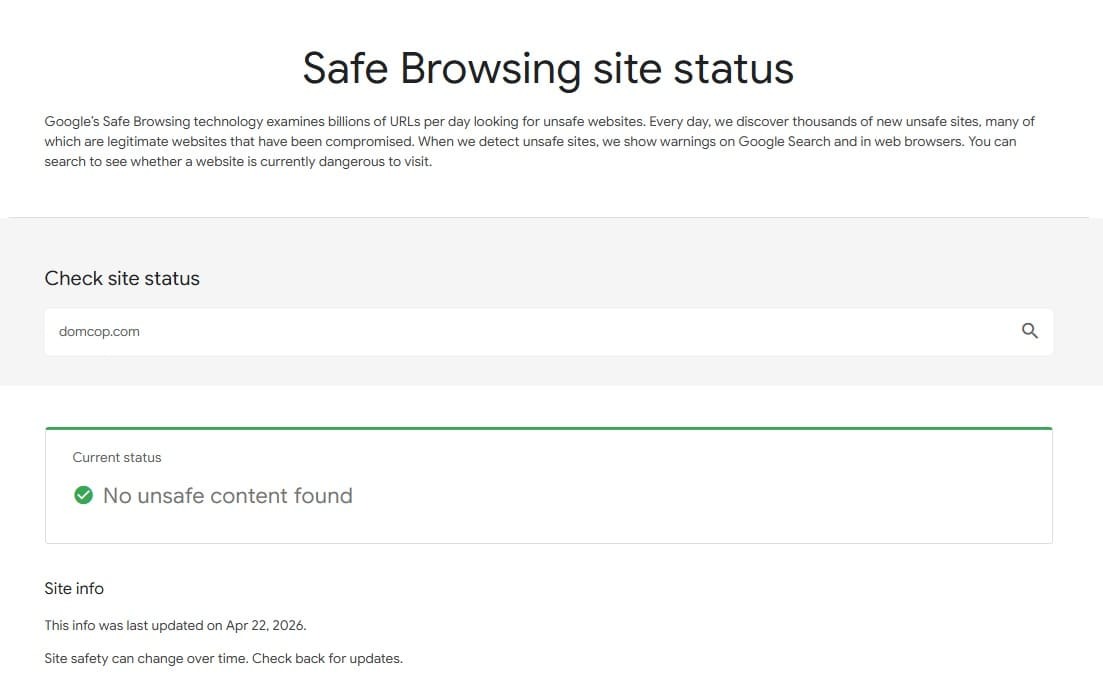
If the site is safe, the report will return "No unsafe content found." If malicious content is detected, you will see an alert with details on the issues found.
Here's what each result means for you:
No unsafe content found: The domain is not flagged for malware or phishing.
Any warning or alert: Walk away. Malware or phishing flags are disqualifiers. A domain with a Safe Browsing warning will show a "Deceptive site ahead" message to anyone who visits it through Chrome or other browsers. That kills trust and traffic instantly.
Step 3: Use the Wayback Machine
The Wayback Machine shows the history of your expired domain. Now that history matters a lot in checking whether your expired domain is banned or blacklisted.
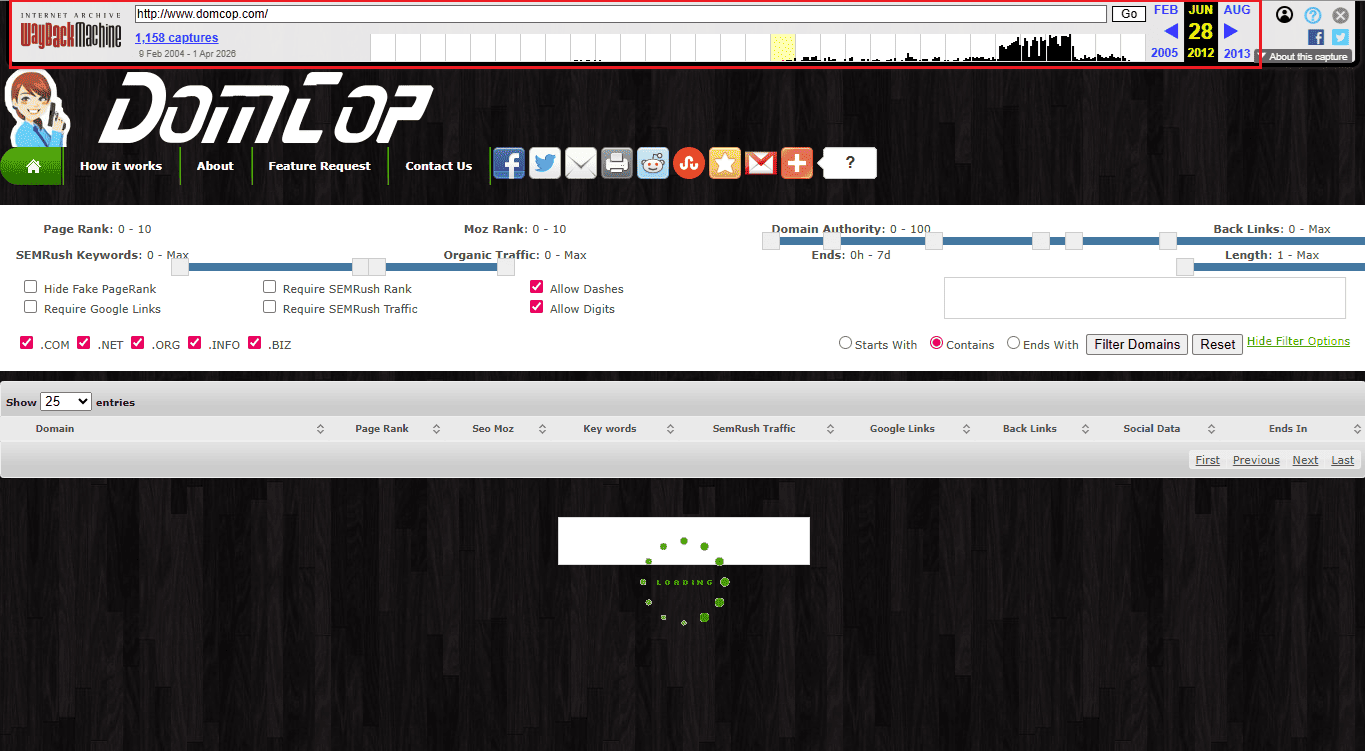
Go to web.archive.org and type in the domain name. You'll see a timeline with snapshots of the website taken at different points in time. You can see here what the website actually looked like in the past, whether it was a reputable business, a personal blog, or something more concerning, like adult content or illegal pharmacies.
Take a look at DomCop’s website snapshot from June 2012, which I opened using the Wayback Machine:
Here's how to go through the domain history information properly:
Check how many years of snapshots exist.
If the archive only shows one year of history, the domain was likely used for something temporary or short-lived, which is often the case with spam sites. A legitimate business domain usually has years of consistent snapshots.
Look at the content over different years.
Click on different dates and browse through what was on the site. If the domain hosted a legitimate business that closed, it is likely clean. If it cycled through spam, walk right away.
Watch for sudden content changes.
By comparing snapshots across different years, you can spot suspicious shifts in content that suggest misuse or abuse. A domain that went from a legitimate finance blog to a gambling site overnight is a big warning sign. Legitimate sites evolve gradually, while spam sites flip overnight.
Here are the specific red flags to look for when browsing the snapshots:
- Thin pages stuffed with affiliate links and no real content
- Pharmaceutical, gambling, or adult content, especially if the domain name has nothing to do with those topics
- Pages in a foreign language that don't match the domain's apparent niche
- Frequent redirects to unrelated websites
- Gaps in the timeline where the domain went completely dark, followed by a sudden new site appearing
Also, watch for 403 errors in the history. This means the Wayback Machine bot was intentionally blocked, which often points to shady activity on the domain.
Step 4: Check the Backlink Profile
Backlinks are links from other websites that point to a domain. Think of them as votes of confidence. When a reputable website links to a domain, it tells Google that the domain is trustworthy. The more quality backlinks a domain has, the more authority it carries in Google's eyes.
But the problem with expired domains is that the previous owner may have built those backlinks the wrong way, through spam networks, paid link schemes, or low-quality directories. Those bad links don't disappear when the domain expires, and when you buy that domain, you inherit all of them.
That's why checking the backlink profile before buying is so important.
How to check it
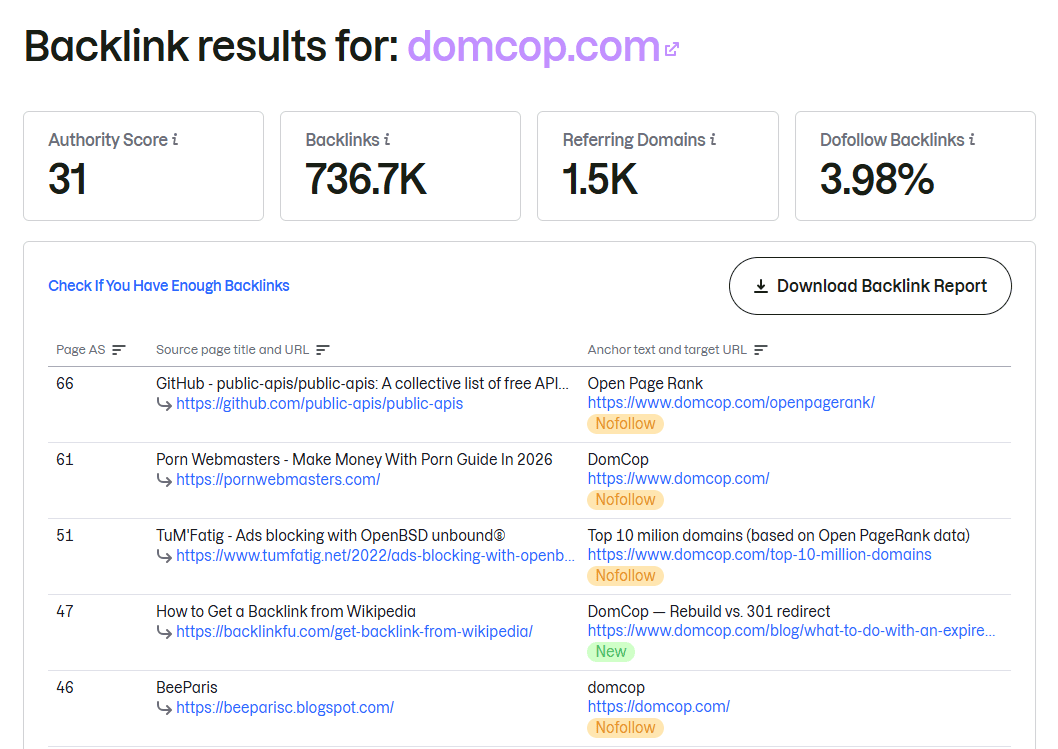
Use tools like Ahrefs, SEMrush, or Majestic to view the domain's backlink profile. These tools show you where the links are coming from, what anchor text is used, and how trustworthy the linking sites are. Both Ahrefs and SEMrush have free versions that give you enough data to spot obvious problems.
I’ve used SEMrush to show an example of domain backlink analysis. Take a look at DomCop’s backlink profile:
What to look at once you're in the tool:
Total backlinks vs. referring domains
What you're looking for is a normal ratio. If a website has 50,000 total backlinks coming from only 1,200 unique domains, that's a red flag. It's not natural for one website to link to another 50 or more times. A clean domain has a balanced spread between total links and the number of sites linking to it.
Anchor text
Anchor text is the clickable text used in a link. Repetitive keyword-stuffed phrases like "buy cheap shoes" or "best credit cards," especially when repeated across dozens of backlinks, are a strong warning sign. Excessive use of exact-match keywords signals that the domain was part of a manipulated link scheme. A healthy domain will have a natural mix of branded terms, generic phrases, and varied wording.
Where the links are coming from
Look for backlinks from low-authority, spammy, or irrelevant websites, and watch for sudden spikes in backlinks, which can indicate manipulative link-building practices. Also check if many links come from foreign-language sites that have nothing to do with the domain's niche. That's a classic sign of a spam link network.
Link velocity
Look at the graph showing when links were built over time. A domain that suddenly gained thousands of links within a few days, then went completely quiet, is a major red flag. Natural link growth is steady and gradual over months and years.
The bottom line here is: Google values the quality of backlinks over quantity. One strong link from a well-known, relevant site is far more valuable than dozens of links from low-authority or unrelated sources.
If the backlink profile looks spammy or heavily manipulated, do not buy it, no matter how good the domain's other numbers look. It might be banned or blacklisted.
Step 5: Check Email Spam Blacklists
If the previous owner used the expired domain to send spam or phishing emails, the domain is likely on one or more email blacklists. These are lists maintained by organizations whose job is to stop spam from reaching people's inboxes.
Why does this matter to you? Because if you buy that domain and try to send emails from it, those emails could get blocked or land straight in the spam folder. This problem is hard to fix after you've already bought the domain.
So, how to check? Go to mxtoolbox.com/blacklists.aspx and type in the domain. MXToolbox checks your domain against multiple spam blocking lists at once for free. The results are color-coded and easy to read.
| Color/Result | What It Means | What To Do |
| All green | Not listed on any major blacklist | Safe to proceed |
| One or two red | Flagged on a minor list | Investigate which list and why before deciding |
| Multiple red | Listed across several blacklists | Walk away. Email delivery will be a serious problem |
Keep in mind that there are currently more than 100 organizations that run these lists, and each one has different specifications for adding a domain. MXToolbox covers the most important ones in a single scan. That’s why we’re suggesting it.
Step 6: Look Up the WHOIS History
In step 3, the Wayback Machine showed you what was on the domain. WHOIS tells you who owns the domain and for how long. These are two different things, and both matter.
Every domain registration creates a public record in the WHOIS database. For expired domains, this ownership trail can reveal problems that content history alone won't show you.
Go to lookup.icann.org for a free basic check. For full historical ownership records, tools like DomainTools or Whoxy.com go deeper.
Take a look at the WHOIS record for DomCop.com generated using the DomainTools app:
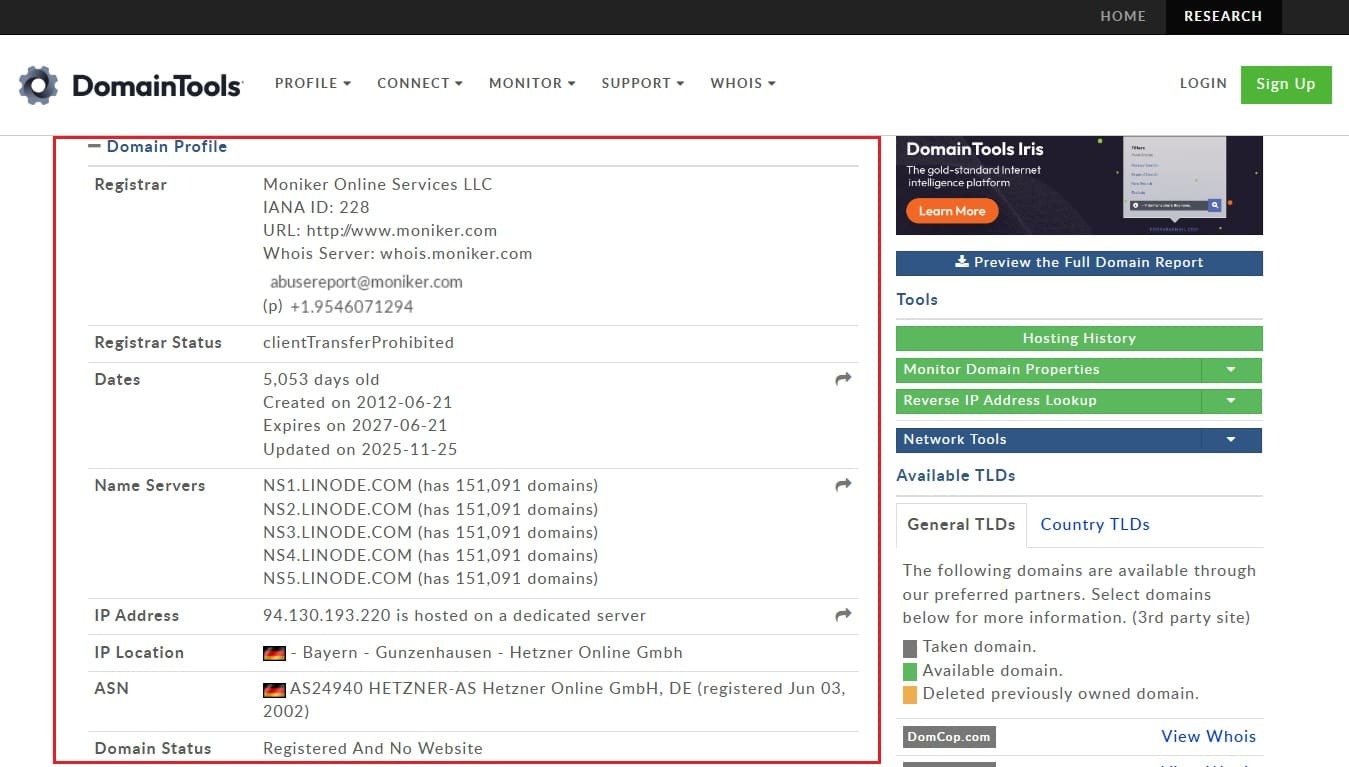
The details in the screenshot can be a bit confusing. So what should you look for? Here's what clean ownership history looks like vs. a problematic one:
Green flags:
- One or two owners over several years.
- Domain registered with the same registrar consistently.
- Long registration periods showing the owner was committed to the site.
- Creation date going back many years.
Red flags:
- Frequent, rapid changes in ownership, which suggest the domain was used for short-term spam or churned repeatedly after getting penalized.
- Multiple registrar changes within a short period.
- Unexplained gaps where the domain had no registered owner, then suddenly reappeared.
- A very recent creation date with no meaningful history behind it.
However, since 2018, WHOIS records have been mostly redacted for privacy under GDPR, unless the registrant specifically chose to make their information public. Simply put, some owners now choose not to disclose their information publicly. That’s why you’ll notice that records from before 2018 are far more detailed and useful for this kind of research.
Step 7: Check Google Search Console (If You Own The Domain)
Google Search Console is only accessible once you own and verify the domain. So think of this as your final confirmation check right after purchase, before you invest any more time or money into the banned domain.
Add and verify the domain in Google Search Console, then immediately navigate to the "Manual Actions" tab. This is where Google will explicitly tell you if there's an active manual penalty on the site.
Here's exactly where to look:
- Go to search.google.com/search-console
- Add your domain and verify ownership
- In the left menu, click Security and Manual Actions
- Then click Manual Actions
If everything is fine, you'll see "No issues detected." If not, you'll see specific issues with details on what went wrong.
While you're there, also check the Security Issues tab right above Manual Actions. This will tell you if Google has detected malware, hacked content, or other security problems on the domain.
Now one important thing to understand is that for an expired domain you don't yet own, you cannot check Manual Actions in Google Search Console beforehand. The tab is only visible to the verified owner.
That's exactly why all the earlier steps matter so much. They help you build enough evidence before spending money, so that by the time you run this final check, you're not walking in blind.
Common Mistakes to Avoid When Checking If an Expired Domain is Blacklisted
Most people who buy a banned or blacklisted expired domain make the same avoidable errors. Here's what to watch out for:
- Trusting Domain Authority alone: A high DA score built on spammy backlinks is worthless. It's the most common trap buyers fall into. Always look at what's behind the number.
- Assuming penalties disappear after expiry: They don't. If a domain was penalized before it expired, that penalty can and often does stick to the domain even after it changes hands.
- Skipping the Wayback Machine: The domain looks clean today because nothing is on it. That doesn't mean it was clean before. If past snapshots show thin content with unrelated outbound links, the domain was likely part of a link scheme.
- Getting carried away in bidding wars: Professional domainers sometimes bid up auctions on domains they don't even want, knowing that beginners will overpay. If the price keeps climbing, step back and reassess.
- Redirecting a penalized domain to your main site: You're at best getting no value, and at worst, you're linking your clean site with a known bad asset.
- Running only one or two checks. No single tool gives you the full picture. The whole point of this guide is that you need all these checks together to make a confident decision.
Final Verdict: Buy Expired Domains or Walk Away?
After running all the checks in this guide, you'll have enough information to make a clear decision. Here's a simple framework to help you decide.
| Signal | Buy | Walk Away |
| Google index check | Pages showing in search results | Zero results for an established domain |
| Safe Browsing | No unsafe content found | Any malware or phishing flag |
| Wayback Machine | Consistent, legitimate content history | Spam, frequent niche changes, or blocked crawler |
| Backlink profile | Natural links from relevant, quality sites | Thousands of spammy or manipulated links |
| Email blacklists | All green on MXToolbox | Multiple red results |
| WHOIS history | Stable, long-term ownership | Frequent ownership changes or suspicious gaps |
| Google Search Console | No manual actions detected | Active penalty or security issue flagged |
If a domain passes every check cleanly, it's a strong candidate worth pursuing. If it fails two or more checks, the cleanup cost and time will surely outweigh any benefit you'd get from the domain.
Now, if most of your expiring domains fail the tests, don’t worry. The best investment strategy involves rejecting 95% of expired domains and only pursuing the genuinely clean, valuable 5%. The universe of expiring domains is quite vast. Another clean domain with similar value will expire tomorrow or next week.
Make sure you check DomCop’s list of expiring and expired domains to find the best option available.
How to Check If Expired Domains Are Blackilisted FAQs
Why do domains get blacklisted?
Domains get blacklisted for spam, malware, phishing, or violating Google's guidelines.
How do I fix a domain blacklist?
First, identify why it is flagged and then fix the root cause, and submit a delisting or reconsideration request to the relevant blacklist operator.
Why is my IP address on a blacklist?
Either spam activity originated from your IP, or you're on a shared hosting server where another user engaged in spammy behavior.
How to check if a domain is penalized by Google?
Use the site:domain.com command in Google search. If no results appear, the domain may be banned or deindexed. Try all other steps mentioned above to check if an expired domain is blacklisted.
Can I still buy a penalized domain?
Yes, but you'll need to clean its backlink profile, remove problematic content, and file a reconsideration request. Recovery is possible but not guaranteed.
Are expired domains bad for SEO?
Not necessarily. A clean expired domain with quality backlinks can be very powerful. The key is avoiding spammy backlinks, toxic anchors, and a messy content history.
How long does it take to recover from a Google penalty?
Depending on the severity, recovery can take anywhere from a few weeks to several months after submitting a reconsideration request and cleaning up the issues.