
When purchasing a domain name, one of the most costly mistakes people often make is neglecting to check domain history before finalizing the deal.
Just like buying a used car, neglecting to check domain history can saddle you with hidden problems, such as Google penalties, spam flags, or even blacklisting.
In this guide, we will show you how to examine a domain's past usage, ownership, and reputation using tools like a whois history lookup, so that your new website starts with a clean slate.
Short on time? The free DomCop domain age checker shows the registration date, the first and last Wayback Machine snapshots and the backlink metrics of any domain in one lookup. The five checks below tell you what to make of them.
Members of DomCop see most of this history on the row: the Wayback age and snapshots, the WHOIS record and the DA trend sit beside every name in the expired domains list.
5 Ways To Check Domain History
The foundation of a good domain purchase is diligent research. These five methods provide a comprehensive look into a domain's past, helping you uncover potential liabilities and hidden value.
1. Use the Wayback Machine (Internet Archive)
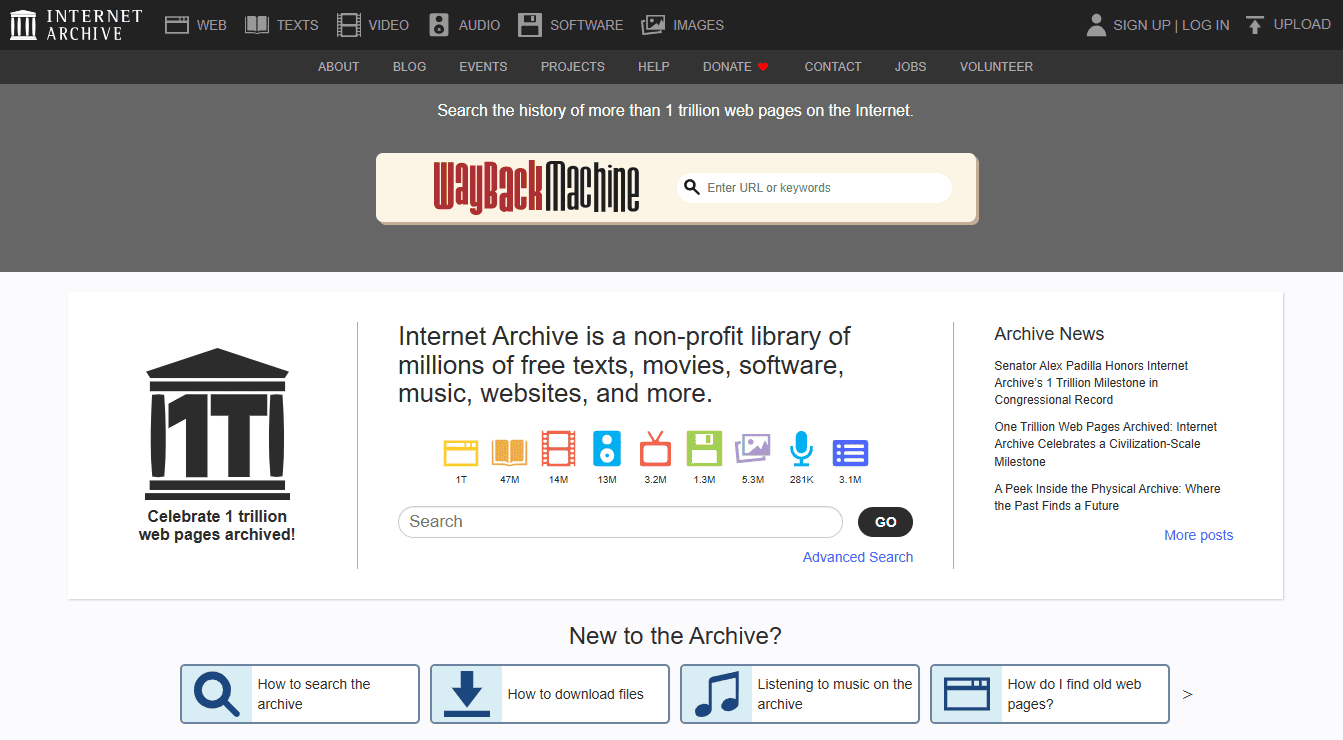
Check domain history using WayBack Machine
Imagine having a time machine for the internet......that's precisely what the Wayback Machine, a project run by the Internet Archive, offers. This free and indispensable tool allows you to peek into the domain name’s website history through hundreds of billions of archived web page snapshots and layouts. It's the quickest, most direct way to visualize a domain's past usage.
Why it's essential:
- Visualize Past Content: You can see what the website actually looked like. Was it a reputable business, a personal blog, or, critically, was it hosting adult content, illegal pharmacies, or anything controversial that could permanently tarnish your brand's image?
- Identify Previous Owners/Changes: By comparing snapshots across different years, you can get clues about changes in branding, purpose, and potentially, previous owners.
- Spot Red Flags: Look for signs of abandoned sites, broken links, or major, suspicious shifts in content that suggest misuse or abuse.
How to Use the Wayback Machine:
- Navigate to the Archive: Go to web.archive.org.
- Enter the Domain: Type the domain name you are investigating into the search bar and click "Browse History."
- Analyze the Timeline: The results page shows a timeline of the domain's activity. Black or blue bars along the timeline indicate when the domain had a viewable web page built on it.
- Explore Snapshots: Click on any year on the timeline and then select a specific date marked on the calendar to see an exact screen capture of what the website looked like on that day.
If the timeline shows long gaps of inactivity or abrupt, drastic changes in content, it warrants further investigation using the other methods below.
2. WHOIS Lookup and WHOIS History Records
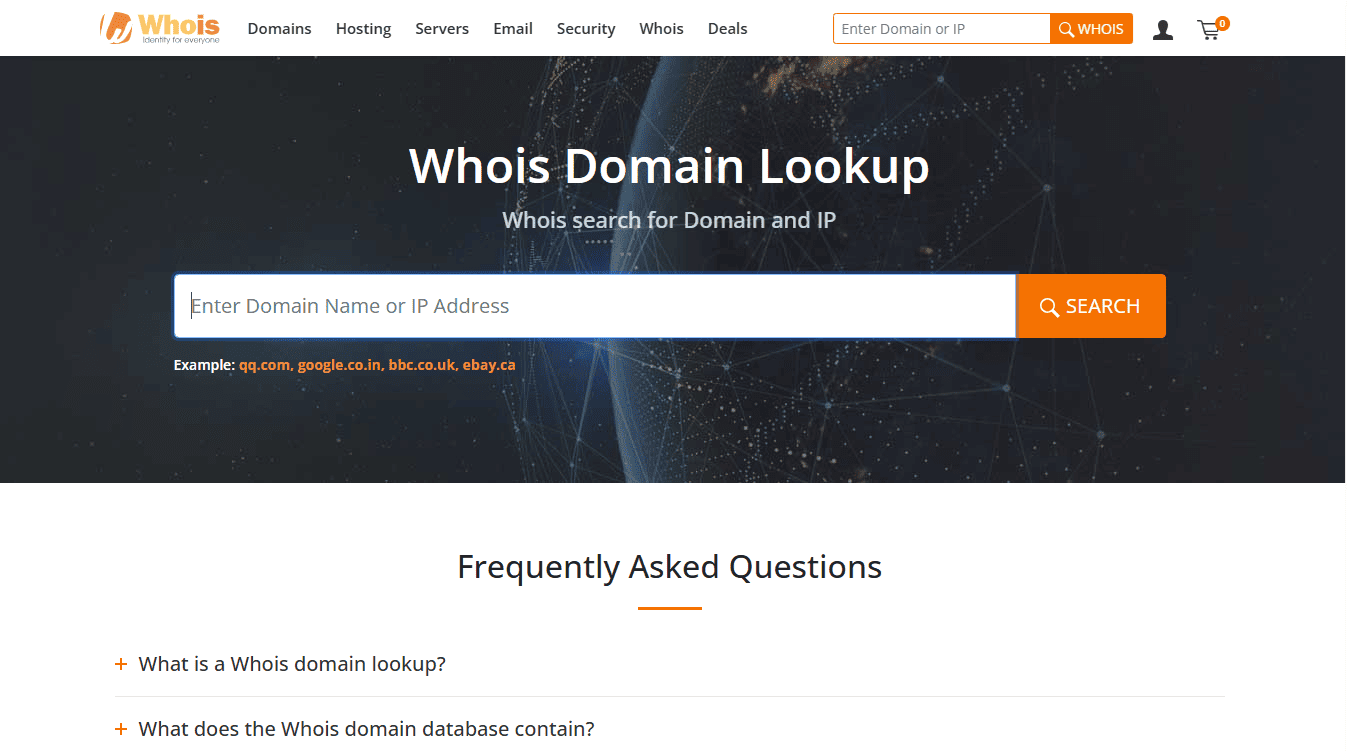
Free Whois Lookup Tool
While the Wayback Machine shows the website's past appearance, a WHOIS lookup reveals the critical administrative history behind the domain. WHOIS (pronounced "who is") is a standard internet protocol that queries a database storing public registration information about a domain name, acting as a mandatory "digital deed" for every registered domain.
What WHOIS Data Uncovers:
- Ownership Details: The current registrant's name, organization, and contact information (though often masked by privacy protection).
- Key Dates: The domain's Creation Date (when it was first registered), Update Date, and Expiration Date. A very old creation date often indicates an established domain, which can be an SEO asset.
- Registrar History: Which company (registrar) holds the registration.
- Status Codes: Flags indicating the domain's operational status (e.g., clientHold or serverHold can signal an administrative or legal dispute).
The Crucial Difference: WHOIS History
A standard, free WHOIS lookup only provides the current record. To truly check domain history and ownership, you need a WHOIS history checker (often a paid or premium feature). This historical data is a chronological archive of every change logged since the domain's inception.
What Historical WHOIS Data Reveals:
- Previous Owners: The names, organizations, and contact information of past registrants. Frequent, rapid changes in ownership can be a significant red flag, suggesting the domain was used for short-term spam or churned repeatedly after getting penalized.
- Privacy Shield Periods: Reveals when the domain switched from having public details to using privacy protection, providing clues about its activity during those specific periods.
- Administrative Changes: Insights into old name servers and administrative contacts, which can be invaluable for legal or intellectual property investigations.
How to Perform a WHOIS Lookup:
- Select a Tool: Find a free public tool like the ICANN Lookup tool or Who.is to get the current record.
- Search: Enter the full domain name and click search.
- Review the Record: Focus on the creation date, expiration date, and any unusual status codes.
- Access History: To view historical owners, you will need to use a paid domain history checker tool, such as DomainTools (we will discuss in detail later), or a similar service. This step is critical for high-value premium domains.
3. Backlink and Spam Score Tools (Ahrefs, Moz, SEMrush)
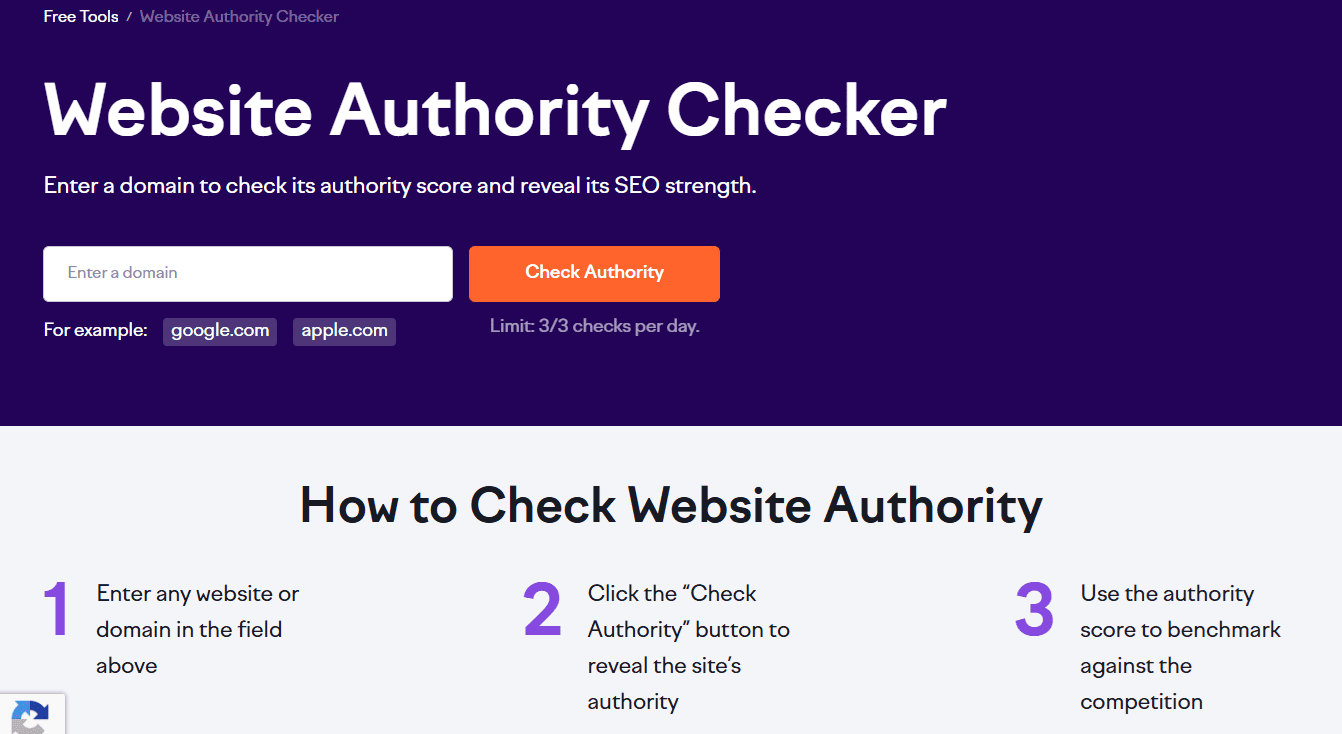
SEMrush Website Authority Checker
The history of a domain's backlinks is arguably the most important factor in determining its current SEO health and the potential for a Google penalty.
Even if the current content is clean, a legacy of "black hat" practices from a previous owner can act as a hidden landmine. This check is best performed using powerful, dedicated SEO platforms.
Why Backlink History is Critical:
- Spotting Toxic Links: Search engines like Google judge a domain’s credibility based on the quality of websites linking to it. If a domain has inherited spammy or low-quality backlinks from link farms, irrelevant foreign sites, or manipulative networks, it can seriously damage your site’s ability to rank well.
- Evaluating Authority: Metrics such as Domain Authority (Moz), Domain Rating (Ahrefs), and Authority Score (SEMrush) offer a useful glimpse into a domain’s backlink strength and reputation.
- Link Velocity Spikes: Sudden, abnormal spikes in link acquisition often hint at a previous owner running a manipulative link campaign. These spikes are strong indicators of potential past penalties.
What to Look For (The Red Flags):
- High Spam Score: Most tools assign a numeric Spam Score (typically 0% to 100%) to the domain and to individual referring links. A score above 30% is generally considered a medium risk, while anything above 60% indicates a severe problem requiring immediate remediation (using Google's Disavow Tool).
- Irrelevant Anchor Text: Look for anchor text (the clickable words of a link) that is heavily keyword-stuffed, irrelevant to your industry, or related to notorious spam topics (e.g., pharmaceuticals, gambling, adult content).
- Link Source Quality: Scrutinize the actual referring domains. If a majority of links come from very low-authority, non-indexed, or foreign-language websites, this points to a history of spamming.
How to Run the Audit:
- Select a Platform: Access a tool like Moz Link Explorer, Ahrefs, or SEMrush.
- Analyze Top Metrics: Input the domain and immediately check its Domain Rating/Authority. A higher score is generally positive, but it must be paired with a low Spam Score.
- Sort by Toxicity: Navigate to the backlinks report and sort the results by the tool's proprietary Spam Score or Toxicity Score to quickly isolate the most dangerous links acquired during the domain's past.
4. Blacklist Check (Google Safe Browsing)
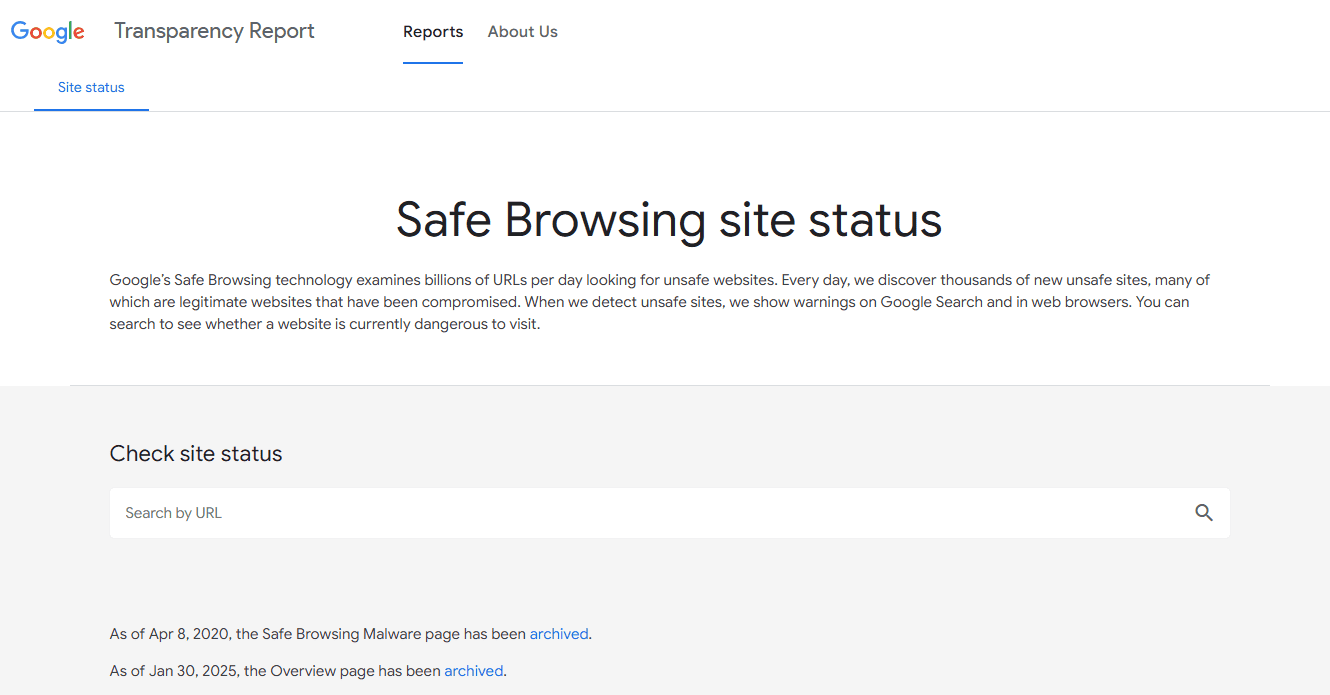
Google Safe Browsing Site Status
Even a domain with clean past content and a low Spam Score can be rendered unusable if it has been blacklisted for hosting malware, phishing schemes, or being a source of spam. These checks look past the visible website and report on the domain's reputation with major security authorities.
What Blacklist Reports Reveal:
- Malware and Phishing History: The report indicates if the domain or its subpages were ever flagged for distributing malicious software, attempting phishing attacks, or serving unwanted, deceptive content.
- Server Reputation: Blacklists often track the IP address of the server, not just the domain. A listing can indicate that the previous owner hosted the site on a "shady" server, a detail that might not be visible in a standard WHOIS or SEO check.
- Date and Risk Level: The tools often provide specifics, such as when the site was flagged, the type of threat, and a severity or risk level, allowing you to gauge the recency and seriousness of the issue.
How to Check Blacklists:
1. Google Safe Browsing (Site Status): This is Google's primary public report.
- URL: transparencyreport.google.com/safe-browsing/search
- Purpose: Checks the current and historical status for malware, unwanted software, and phishing warnings shown to users in Google Search and Chrome.
2. Spamhaus Domain Block List (DBL): Spamhaus is one of the most respected organizations for anti-spam.
- URL: check.spamhaus.org
- Purpose: Checks if the domain has a history of being used for spam, phishing, or other malicious email-related activities that would get its emails rejected.
Interpretation of Results:
A Clean Result: The goal is for all tools to report "No unsafe content found" or "Not listed."
A Flagged Result: A warning is a major red flag. Even if the issue has been resolved, a domain that has been repeatedly blacklisted carries a permanent reputation risk. You must decide if the effort to request a removal from various blacklists (a super complex process) is worth the future penalties.
5. Use DomainTools (Premium Domain Research)
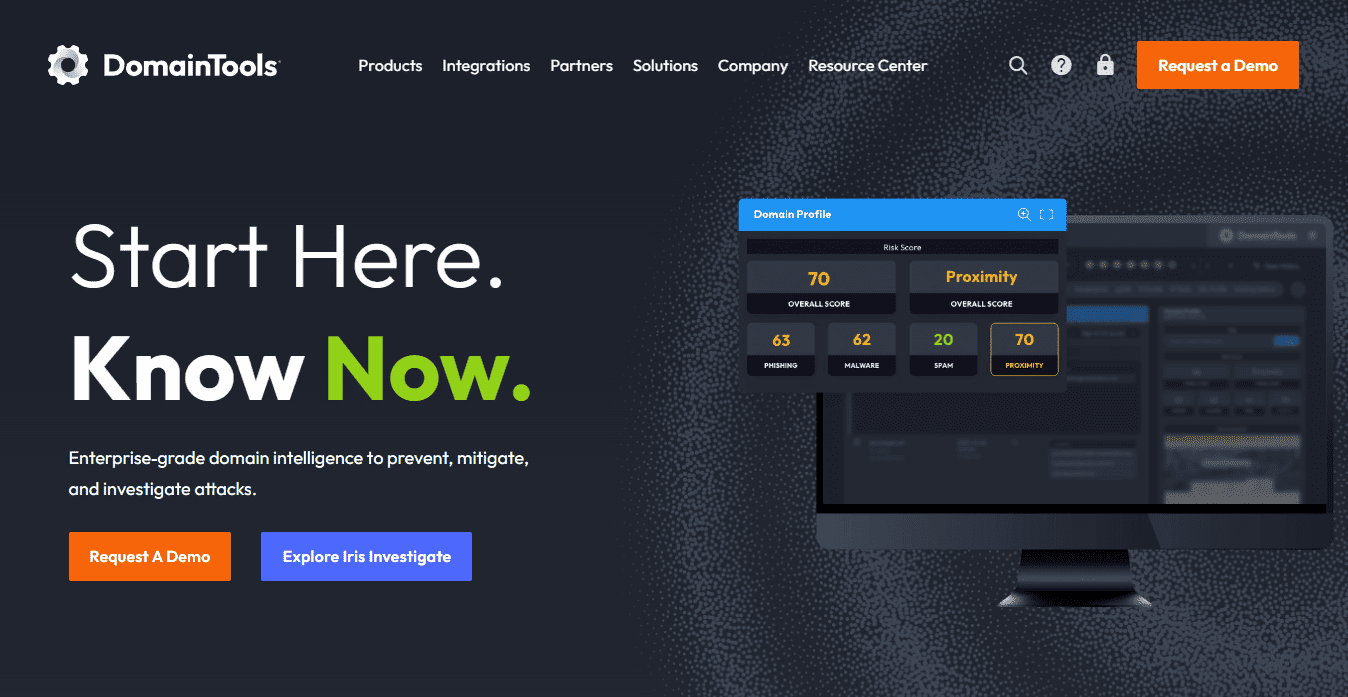
Check domain history using DomainTools
DomainTools is a powerful, premium platform that goes far beyond basic WHOIS and IP lookups. This domain history checker offers comprehensive and detailed historical intelligence on a domain name. Cyber security professionals and domain investors use this tool for its depth of data.
Access and Pricing
- Premium Membership: Access to all data and research tools is available through a paid subscription, costing $99 per month or $995 per year (a savings of over 15%).
- Individual Reports: If you only need to check the history of a single domain, you can purchase a comprehensive report for a one-time price of $49.
- Non-Member Access: Without a membership, you will only receive a glimpse of the initial statistics after performing a lookup.
Important Historical Data Provided
The premium membership and the individual reports provide a complete domain history, including critical statistics and forensic-level details. This data allows for the identification of long-term patterns, ownership changes, and connections to malicious activity.
| Data Type | Description |
| WHOIS History | A chronological record of every change made to the domain's registration information (owner name, email, address, etc.). This is crucial for tracing past ownership. |
| Hosting History | Tracks changes in the domain's IP address and Name Servers over time, which reveals hosting providers and location changes. |
| Screenshot History | Provides a visual record of what the website looked like at various points in its life. |
| DNS Events | A detailed log of changes to DNS records, registrars, and other technical configuration changes. |
| Reverse Lookups | Tools to identify all domains that share the same IP address or name server, which can expose connections to malicious networks or other sites owned by the same entity. |
How to Use DomainTools
- Decide on Access: Choose between a premium membership or buying a one-time report.
- Perform Lookup: Navigate to the Whois Lookup History Page and enter the domain name, then click Lookup.
- Review Details: On the results page, you will see initial details and have the option to purchase or download the full report (which can be over 2000 pages long in some cases).
DomainTools allows you to download a free sample report of their own domain, domaintools.com, to let you see the vast amount of detail provided before committing to a purchase.
How to see historical Domain Authority
A domain's Moz Domain Authority today says little on its own; the direction it has moved says more. A DA that climbed steadily over years belongs to a site that kept earning links. A DA that jumped from 5 to 40 in a few months and is now sliding usually means bought links that are being discounted. Moz publishes a monthly DA history for every domain, and DomCop shows it in the grid as a DA trend sparkline with the change over 12 months and 3 years, so a sudden spike stands out before you open the backlinks. For the same reason, check the Trust Flow to Citation Flow ratio: historical authority that came from real sites keeps the two close together.
Domain History Check: Red Flags You Shouldn’t Ignore
When sifting through historical data, be on the lookout for the following critical issues:
Google’s Ban
This is the most severe red flag. If a domain was previously banned or penalized by Google, it means the search engine judged the site to have violated its Webmaster Guidelines, often through aggressive spamming, cloaking, or other "black hat" SEO techniques.
- The Problem: A Google penalty may not be immediately obvious, but it prevents the site from ranking or even appearing in search results. The bad reputation is often sticky, meaning it can take months or years of intensive cleanup work to recover the domain's standing, making the purchase effectively worthless for SEO purposes.
- How to Check: Use tools like Google Search Console's "Manual Actions" report (if the previous owner provides access) or simply check if the domain ranks for its own name. If a domain with an established history does not rank for anything, it's a huge warning sign.
Spam or Malware
A domain used to host malicious content poses an immediate threat to your brand and your users.
- The Problem: If a domain was previously used for distributing malware, phishing attacks, or linking to low-quality, spammy content, it is likely to be flagged by security software and browsers (like Chrome or Firefox). Even after you clean the site, users will see prominent security warnings when trying to access it, causing them to immediately click away.
- How to Check: Look for rapid, unexplained changes in backlink profiles, suspicious anchor text, or frequent listings on security websites. Screenshot history from tools like DomainTools or the Wayback Machine can also reveal if the site was previously a malicious or low-quality content farm.
Abuse History
This red flag relates less to search engines and more to the domain's legal and ethical past.
- The Problem: A domain with a record of abuse may have been involved in copyright violations, selling illegal goods, or disputes over trademarks and ownership. If a previous owner hid their identity using WHOIS privacy or frequently transferred the domain, it could be a big sign they were trying to avoid legal consequences or cover up some shady activity.
- How to Check: Check the WHOIS history for frequent ownership changes, legal warnings, or sudden, uncharacteristic transfers. A high number of spam reports or repeated blacklisting on various ISPs also falls under abuse history.
Blacklisted on ISPs
Internet Service Providers (ISPs) and email providers (like Gmail or Outlook) maintain extensive blacklists to prevent spam and malicious email from reaching their users.
- The Problem: If the domain’s associated mail servers were previously used to send spam, they will be placed on these blacklists. When you launch your new site and start sending legitimate emails (e.g., password resets, marketing updates), they will be automatically filtered into the recipient's spam folder or blocked entirely. This severely damages deliverability and business communication.
- How to Check: Use dedicated Blacklist Check tools (as previously discussed) to run the domain against dozens of global blacklists maintained by organizations that track spam and malicious activity.
Why You Should Check Domain History Before Buying
Investing time in a thorough domain history check is non-negotiable for serious buyers, whether you are launching a new brand or building an SEO asset.
Learn More About The Previous Owners Of The Domain
A clear history reveals legitimate business activity and stable ownership. A murky history with frequent changes or concealed WHOIS information suggests instability, potential disputes, or even criminal activity that you do not want to inherit.
Learn More About The Past Uses Of The Domain
Knowing what the domain was used for in the past, whether it focused on gardening, finance, gambling, or any other topic, is essential. If its old content doesn’t align with your current plans, search engines might take longer to recognize and categorize your new website correctly, which can slow down your SEO growth and delay visibility in search results.
Potential Brandability Issues
If the previous site was notorious for scandal, poor customer service, or highly controversial content, that reputation can persist. When a user sees your new brand on the old domain, the negative association could damage trust and conversion rates.
Potential SEO Issues
The backlink profile is the core SEO asset of an existing domain. If the links pointing to the site are low-quality, spammy, or toxic (a common result of a Google penalty), you will be forced to spend significant time disavowing those links instead of building new, valuable ones.
Conclusion
Checking a domain's history is the most critical due diligence step before purchasing any established address. By using free tools like the Wayback Machine, WHOIS, and premium platforms like DomainTool, you can find hidden red flags.
Skipping this process risks inheriting a toxic asset. It will cost you far more in cleanup and lost opportunity than the purchase price. A clean history provides a solid foundation, while a problematic one ensures failure.
FAQs
What is domain history?
Domain history is the comprehensive record of a domain name from its initial registration to the present day. This includes all changes to ownership (WHOIS records), IP addresses, name servers, registrars, and the actual website content as recorded by various web archives.
Why is checking domain history important?
It is important because a domain can carry "baggage," such as penalties from search engines (like Google), bad backlink profiles, or a history of being used for spam or malware. Inheriting these issues can severely harm your new website's SEO, reputation, and ability to send emails effectively.
How can I check my domain history for free?
You can check domain history for free using several tools:
- Wayback Machine (Internet Archive): To view past website content and screenshots.
- Free WHOIS Lookups: To see the current and sometimes recent ownership/registration details.
- Basic Blacklist Checks: To see if the domain is currently flagged for spam.
Can a domain with a bad history be recovered?
Yes, but recovery is often difficult, time-consuming, and expensive. It requires extensive cleanup, including submitting a reconsideration request to Google, disavowing toxic backlinks, removing malware, and building a clean, high-quality reputation from scratch.
Where can I view domain history records?
The best places to view historical records are:
- Wayback Machine: For content and visual history.
- Premium Tools (like DomainTools): For detailed, chronological logs of WHOIS, IP, and name server changes.
- SEO Tools (Ahrefs/SEMrush/Moz): For historical backlink and spam score data.