Finding the right expired domain can feel like searching for a needle in a haystack. Every day, thousands of web addresses lose their owners, but not all of them are worth your time or money. Some have great history, while others are filled with spam. This is where DomCop filters become your best friend.
Instead of guessing which names are valuable, you can use DomCop filters to sort through the noise. These tools help you see important data points like authority, age, and traffic in seconds.
In this guide, we will explore the best DomCop filters to use and show you exactly how to find high-quality expired domains for your next project.
What is DomCop?
DomCop is a search engine designed specifically for domain buyers. It works by gathering millions of domain names that are expiring, expired, or archived from various sources across the web. Instead of visiting dozens of different auction sites or waiting for daily drop lists, you can see everything in one central place.
The platform provides a massive amount of data for every domain it lists. It integrates metrics from top SEO tools like Moz and Majestic to give you a clear picture of a domain's power.
By using DomCop filters, you can sort through this massive database to find specific names that meet your exact requirements. Whether you are looking to build a new website, create a backlink source, or flip domains for profit, it serves as the ultimate research hub.
Why Use DomCop Filters?
With over 200,000 domains expiring every single day, it is impossible to check each one manually. If you tried to look at every listing, you would spend all your time researching and none of your time building. DomCop filters solve this problem by doing the heavy lifting for you.
Using DomCop filters allows you to set specific rules for your search. If you only want domains that are older than ten years or those that have a high valuation, you can set those parameters in seconds. This prevents you from wasting money on "junk" domains that have no SEO value or those that have been banned by search engines.
Another major benefit of DomCop filters is the ability to find niche-specific opportunities. You can filter by industry or language to ensure the domain matches your brand.
By narrowing the results to the top 1% of available domains, you can make your search both faster and more effective.
The DomCop Filter Breakdown
Let’s take a look at the set of filters that DomCop offers:
1. Info Filters
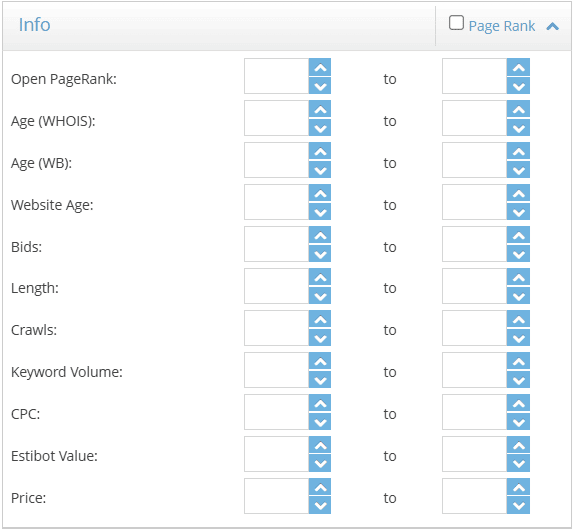
The Info section contains general data points about a domain’s history, popularity, and estimated value. These domain filters help you understand a domain's basic vital signs.
- Page Rank: This refers to the legacy Google metric. While Google no longer updates public PageRank, it can still indicate the historical importance of a site.
- Open PageRank: A modern alternative to Google’s PageRank that provides a score from 0 to 10 based on current web data.
- Age (WHOIS): The number of years since the domain was first registered according to official WHOIS records.
- Age (WB): This measures age based on the first time the Wayback Machine (Archive.org) crawled the site.
- Website Age: This measures how long the website has been active and visible on the internet.
- Bids: This shows how many people are currently bidding on the domain. High bids usually mean the domain is in high demand.
- Length: This lets you filter by the number of characters. Most investors prefer shorter names because they are easier to remember.
- Crawls: This indicates how many times the site has been indexed or "crawled." More crawls often mean the site was more active.
- Keyword Volume: This shows how much search traffic is associated with the words inside the domain name.
- CPC: Cost Per Click helps you understand the advertising value of the keywords in the domain.
- Estibot Value: This provides an automated dollar valuation, giving you a quick idea of what the domain might be worth on the market.
2. Moz Filters
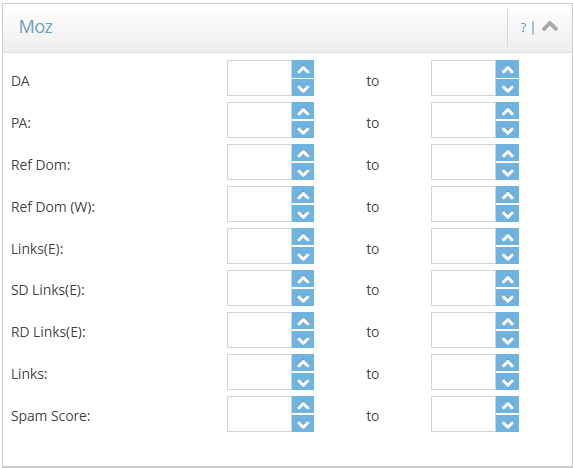
The Moz section focuses on authority and the health of the domain’s backlink profile. Using these DomCop filters helps you ensure that a domain has real power and hasn't been abused by previous owners.
- DA (Domain Authority): A score that predicts how well a website will rank on search engines. Higher numbers usually mean more ranking power.
- PA (Page Authority): Similar to DA, but it measures the strength of the specific page being listed.
- Ref Dom: This tells you the number of unique referring domains. It is often better to have links from many different websites rather than many links from just one site.
- Ref Dom (W): This counts referring domains based on the "root" version of the website.
- Links(E): Shows the total number of external links pointing to the domain.
- SD Links(E): Refers to external links from unique subdomains.
- RD Links(E): Specifically tracks links coming from unique root domains.
- Links: A general count of all backlinks Moz has discovered for the domain.
- Spam Score: This is a vital filter. It rates the domain from 0 to 100 based on the number of spammy flags. Most buyers use this to filter out domains that might be penalized by Google.
3. Language & Majestic Filters
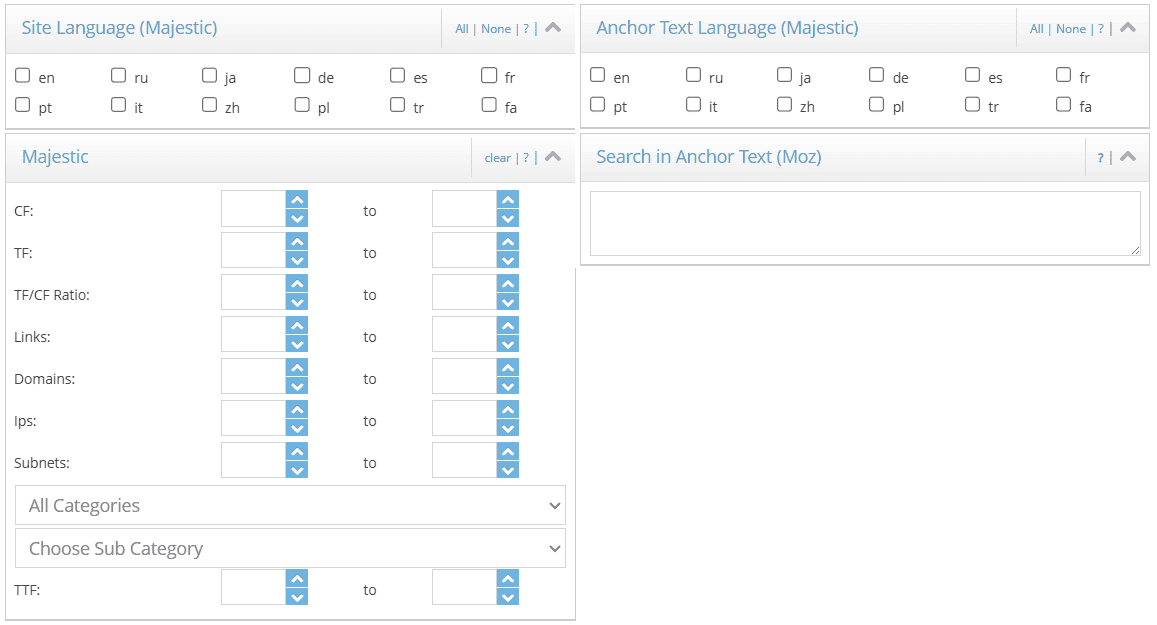
The Language and Majestic sections are essential for finding domains that fit your specific niche. These DomCop filters allow you to look past simple authority scores and see the actual quality and context of the links.
- Site Language (Majestic): This filter lets you select domains that were previously hosted in a specific language (like en, ru, ja, de, etc.). This is crucial if you are building a site for a specific local market.
- Anchor Text Language (Majestic): This helps you see what language other websites were using when they linked to the domain. If the site is English but the anchor text is in another language, it could be a sign of spam.
- Search in Anchor Text (Moz): This allows you to search for specific keywords within the anchor text of the backlinks. It is a great way to find domains with a very specific history.
- CF (Citation Flow): This measures how influential a domain is based on the quantity of links pointing to it.
- TF (Trust Flow): This measures the quality of those links. High trust flow means the links come from reliable, high-quality sources.
- TF/CF Ratio: A very popular tool among users. You can set a range to ensure the trust and citation scores are balanced. A domain with high citation but very low trust is often a sign of a spammy link profile.
- Links, Domains, IPs, and Subnets: These filters let you see the technical diversity of the backlink profile. A healthy domain usually has links coming from many different IPs and subnets.
- All Categories & Sub Categories: Majestic categorizes domains based on their content (such as Arts, Business, or Health). You can use this to find a domain that already has authority in your specific industry.
- TTF (Topical Trust Flow): This allows you to filter by the strength of a domain within a specific category score.
4. Social & Alexa Filters
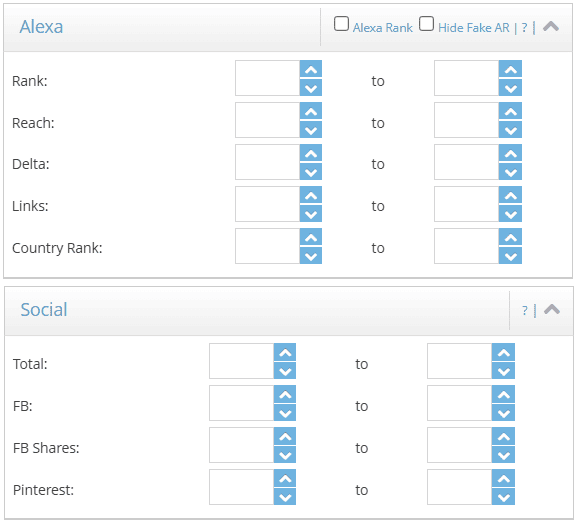
The Social and Alexa sections help you understand how much "real-world" attention and traffic a domain has received. These DomCop filters are perfect for finding names that were once popular with actual human readers.
- Social (Total, FB, FB Shares, Pinterest): These filters track how many times the domain was shared on social media platforms. High numbers here show that the content was engaging enough for people to share it with their friends, which is a great sign of a natural link profile.
- Alexa Rank: This is a classic metric used to estimate how popular a website is compared to all other sites on the internet. A lower number means the site had more traffic.
- Hide Fake AR: This is a unique toggle that filters out domains with manipulated or "faked" Alexa Ranks, ensuring you only see honest traffic data.
- Reach: This measures the estimated number of unique Alexa users who visited the site.
- Delta: This shows the change in the site’s ranking over the last three months.
- Links: This is Alexa's count of the number of sites linking to the domain.
- Country Rank: This shows how popular the site was in a specific country, which is helpful for local SEO.
5. SEMrush Filters
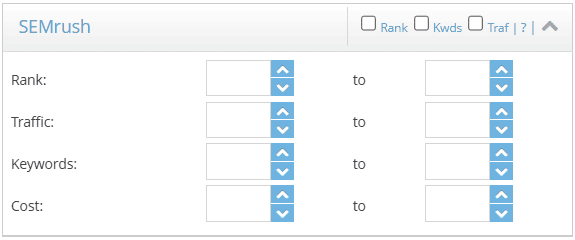
SEMrush is the industry standard for tracking search engine performance. Using these DomCop filters, you can identify domains that are still ranking for valuable terms.
- Rank: This shows the domain's position in the SEMrush global database.
- Traffic: This gives you an estimate of how many monthly organic search visitors the domain receives.
- Keywords: This filter allows you to see how many different search terms the domain is currently ranking for in the top 100 results.
- Cost: This estimates how much you would have to pay in Google Ads to get the same amount of traffic the domain gets for free.
6. Domain Source, Industry & Geo Filters
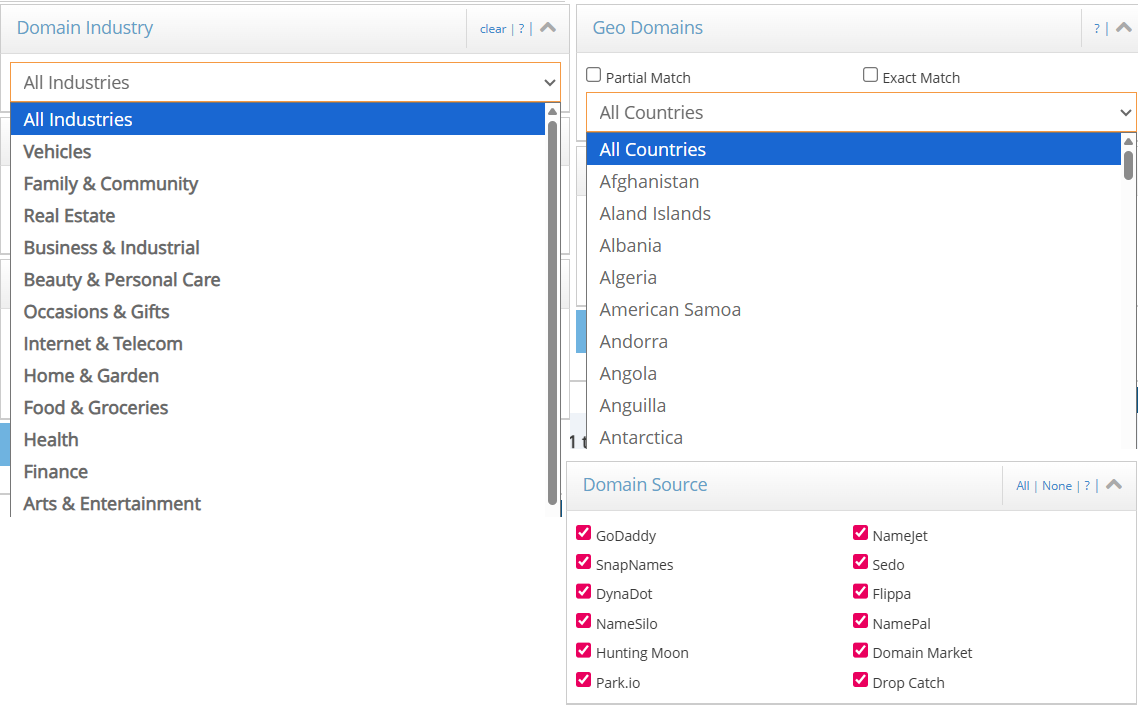
These filters help you narrow down where the domain is coming from and what its historical purpose was. By using these DomCop filters, you can target specific markets and reliable sellers.
- Domain Source: This allows you to select exactly which marketplace you want to search. You can choose from major names such as GoDaddy, NameJet, SnapNames, Sedo, DynaDot, Flippa, and DropCatch. If you have a preferred registrar, this is the easiest way to find their specific inventory.
- Domain Industry: This is a powerful tool for niche targeting. You can clear the list and pick specific industries such as Real Estate, Finance, Health, Travel & Tourism, or Computers & Consumer Electronics. This ensures the domain you buy has a history that matches your current project.
- Geo Domains: These domain filters identify domains that include geographic locations. You can choose Partial Match or Exact Match for keywords related to specific countries. The list is very comprehensive as it covers every location from Afghanistan to Zimbabwe.
7. Extensions, Listing Types & Miscellaneous
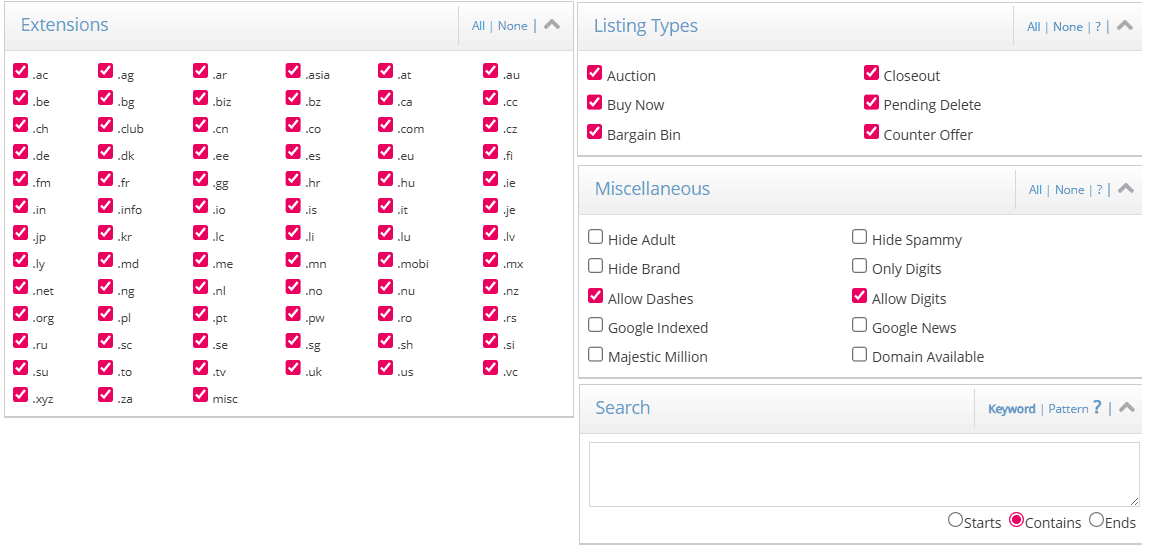
The final set of DomCop filters handles the technical format of the domain and the specific way it is being sold.
- Extensions: You can select or deselect specific TLDs. Whether you want a classic .com or .net, or something more modern like .io, .club, or .xyz, this filter keeps your results organized.
- Listing Types: This defines the "how" of the purchase. You can filter by Auction (bidding), Closeout (last chance sales), Buy Now (fixed price), Pending Delete (about to drop), or Bargain Bin.
- Miscellaneous: These are "quick toggles" for safety and quality.
- Hide Adult & Hide Spammy: Instantly removes low-quality or inappropriate domains.
- Hide Brand: Removes domains that might have trademark issues.
- Only Digits: Filters for domains consisting only of numbers.
- Allow Dashes & Allow Digits: Toggles that let you include or exclude domains containing hyphens or numbers based on your preference.
- Google Indexed: Shows only domains that are currently visible in Google’s search results.
- Google News: Filters for domains that were previously approved for Google News.
- Majestic Million: Filters for domains that are in the top million most linked-to sites on the web.
- Search (Keyword/Pattern): This lets you search for specific words within the domain name. You can choose if the domain Starts, Contains, or Ends with your keyword. You can also use Pattern search to find specific structures, such as domains with specific vowel and consonant arrangements.
How to Use DomCop Filters: Understand with Example
Using DomCop filters effectively is about stacking metrics to find the best possible domains. Follow this simple guide to set up a search that yields high-quality results.
Step 1: Set Your Basic Authority Thresholds
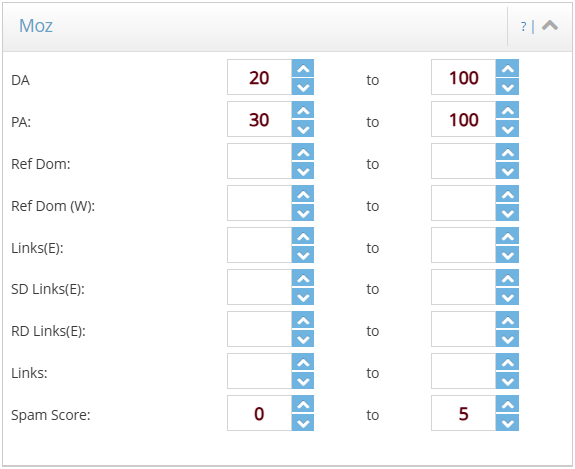
Start by navigating to the Moz filter sections. For a strong domain, set a minimum DA (Domain Authority) of 20 and a PA (Page Authority) of 30. This immediately clears thousands of weak domains with no ranking power. To ensure your domain is safe, set the Spam Score filter to a maximum of 5%.
Step 2: Apply the Majestic Filter
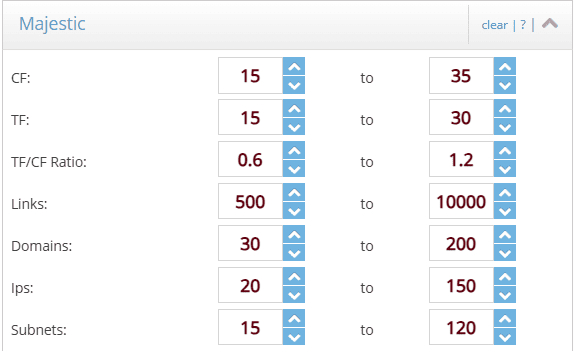
When checking the Majestic section, you want to find a balance between power and quality. A solid starting point is setting a CF of 15–35 and a TF of 15–30. This helps you find domains with a real backlink profile that hasn't been faked.
You should also keep the TF/CF ratio between 0.6 and 1.2. This ensures the trust level matches the link volume, as a low ratio usually means the links are low-quality or manipulative.
To make sure the links are natural, look for a healthy variety of sources. Aim for 30–200 referring domains, 20–150 IPs, and 15–120 subnets.
Step 3: Choose Your Niche and Language
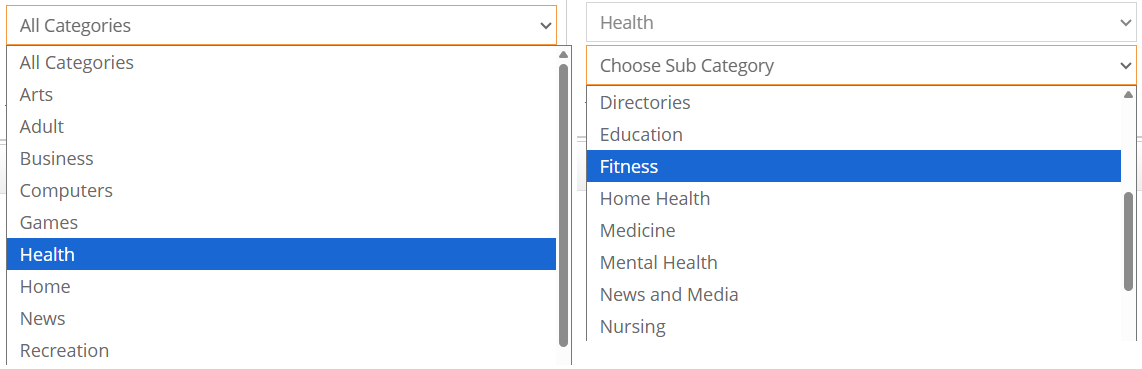
If you are looking for a specific type of site, use the Majestic Categories or Domain Industry filters. For example, if you want a health blog, select "Health" from the industry list. Also, check the Site Language filter to ensure the domain was previously used in your target language.
Step 4: Refine the Listing Type
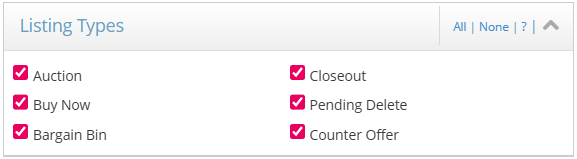
Decide how you want to buy. If you want a domain right now without waiting for an auction to end, go to the Listing Types filter and select Buy Now or Closeouts. If you are looking for rare gems and don't mind bidding, select Auction.
Step 5: Review the Results
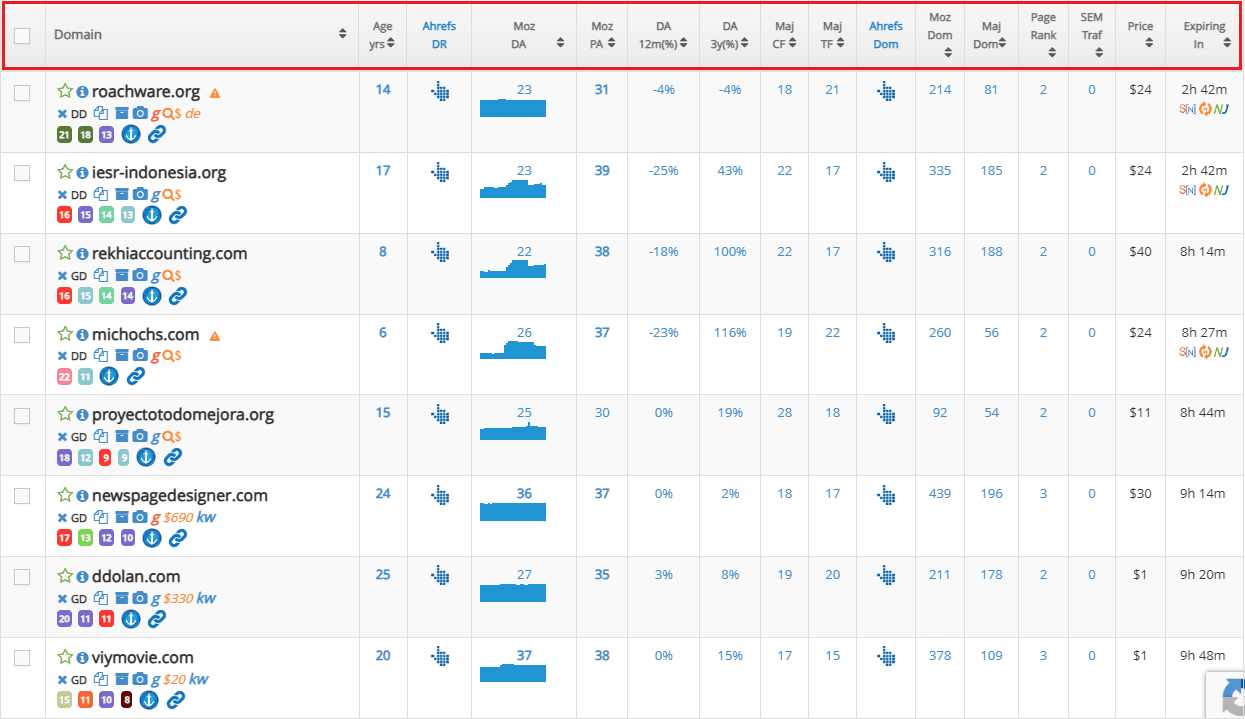
Once you click search, DomCop will present a list of domains that match every single rule you set. You can see the Page Rank, SEMrush Traffic, Majestic and Moz metrics right in the results table. If you find a set of DomCop filters that works perfectly for you, remember to save the search so you can run it again tomorrow with one click.
Conclusion
Finding the right expired domain doesn't have to be a headache. Rather than looking through thousands of names that don't matter, you can just set the parameters you want and let the tool do the work.
The best part about DomCop filters is that they help you see the truth about a domain's past. You can quickly check if a site has real power, if it has a clean history, or if it fits your specific industry. It is a much smarter way to work because you aren't wasting money on domains that won't help your rankings.
Using DomCop filters keeps your search organized and fast. Once you know which settings work for your goals, you can find great domains every day without any stress.